How to connect Claude to PostMCP AI (Step by Step)
Every screen, setting, and config snippet in order: sign in to PostMCP, connect your social profiles, copy your remote MCP server URL, add the custom connector in Claude.ai or Claude Desktop, and publish your first live post directly from chat.
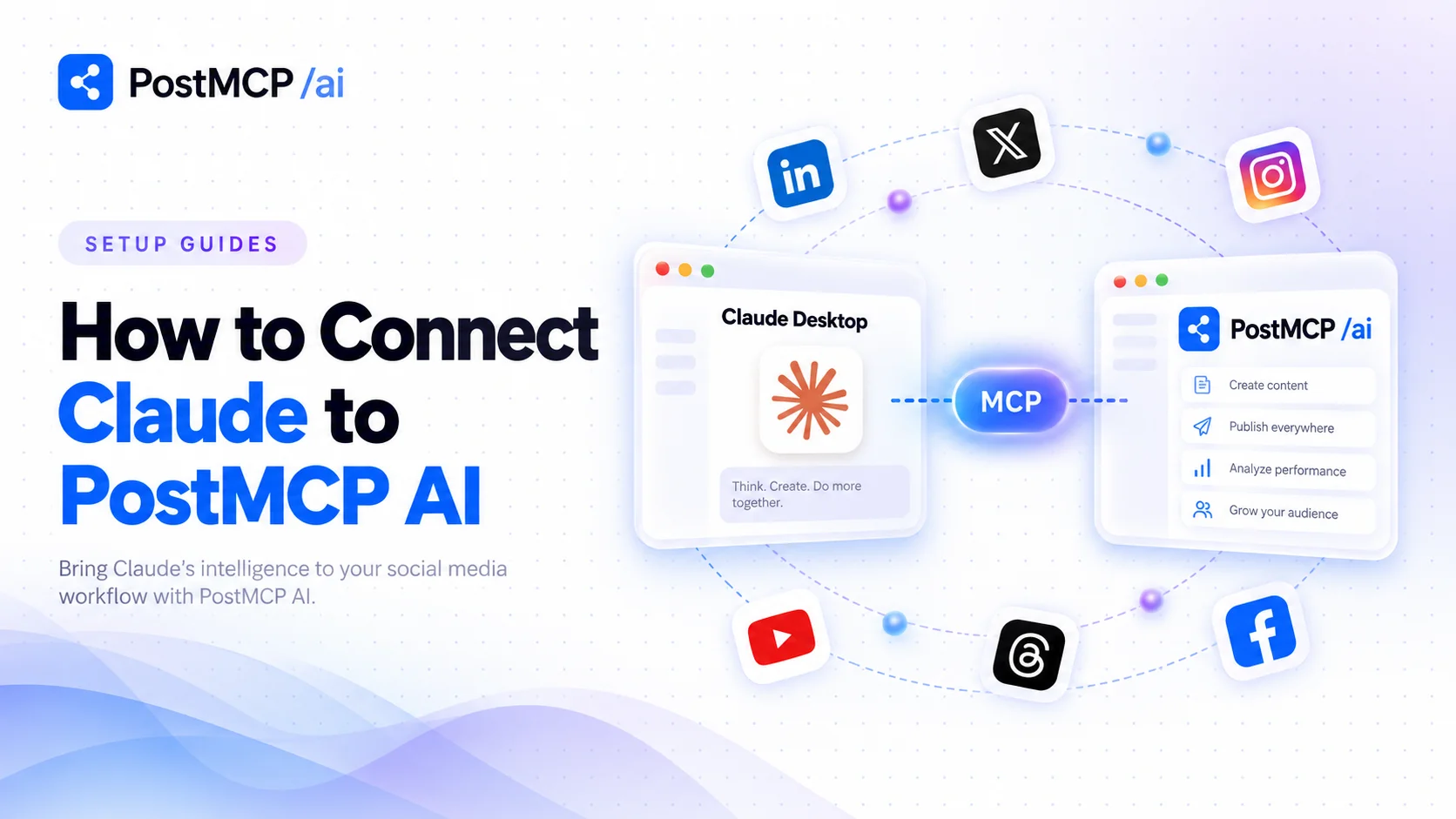
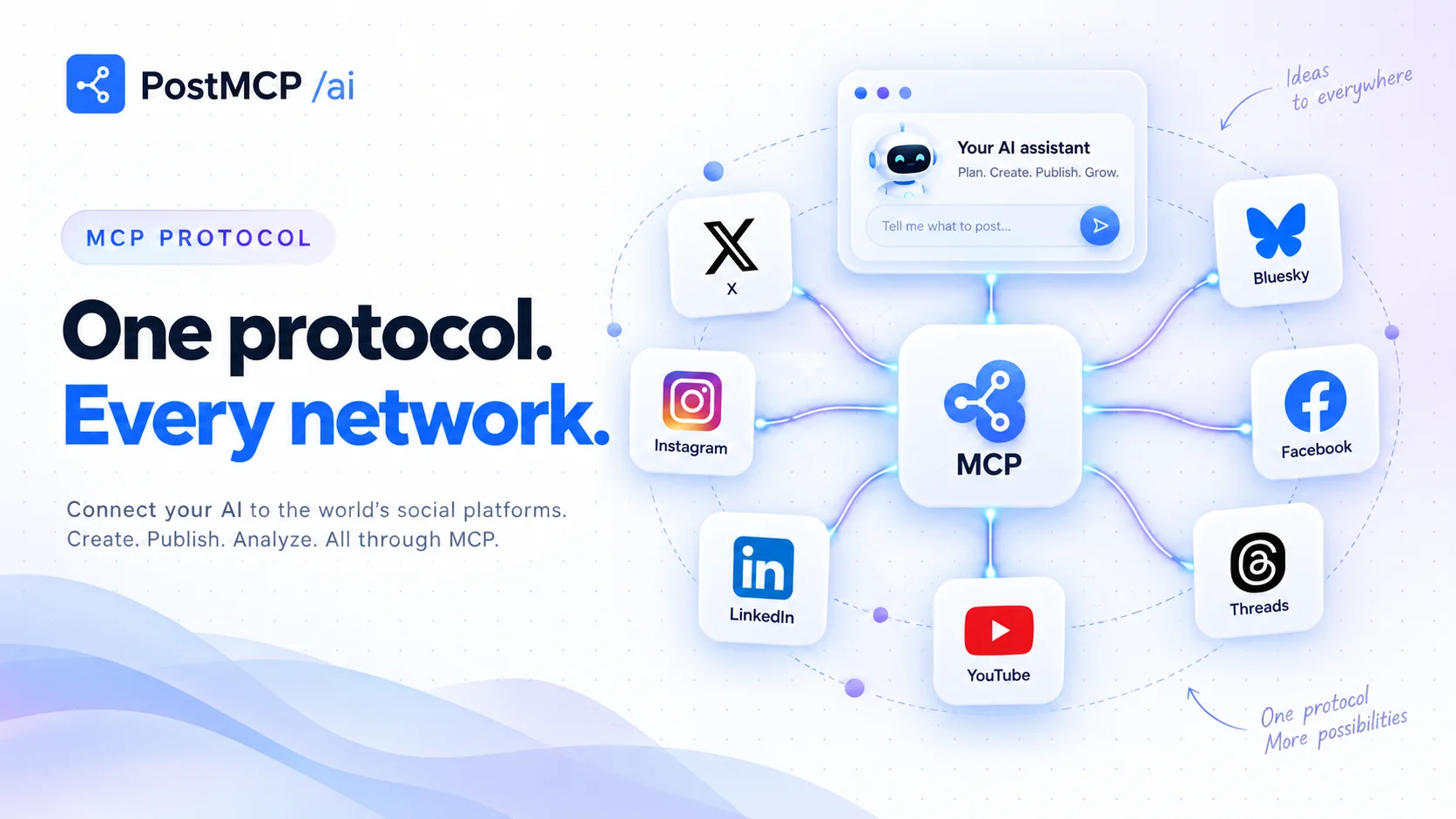
Connecting Claude to PostMCP AI turns your Claude conversations into a live command center for seven major social networks: Bluesky, LinkedIn, X (Twitter), Instagram, Facebook, Threads, and YouTube Shorts.
Instead of switching browser tabs, copying and pasting copy, or logging into fragmented scheduling tools, you can simply instruct Claude: “Write a post about our latest update and publish it to Bluesky and LinkedIn with PostMCP.” Claude drafts the copy, verifies character limits, invokes PostMCP tools, and publishes live in seconds.
Before you start
- A PostMCP AI account (free to sign up at the login page with Apple, GitHub, or Google — comes with 20 free monthly posts).
- At least one connected social network (such as Bluesky, LinkedIn, or X) in your PostMCP workspace.
- A Claude account — either Claude.ai (Pro, Team, or Enterprise for web custom connectors) or Claude Desktop (100% free on macOS and Windows).
Step 1 — Sign in to PostMCP AI
Navigate to the PostMCP Sign In page. Authenticate with a single click using your Apple, GitHub, or Google account. There are no passwords to create or email confirmation delays.
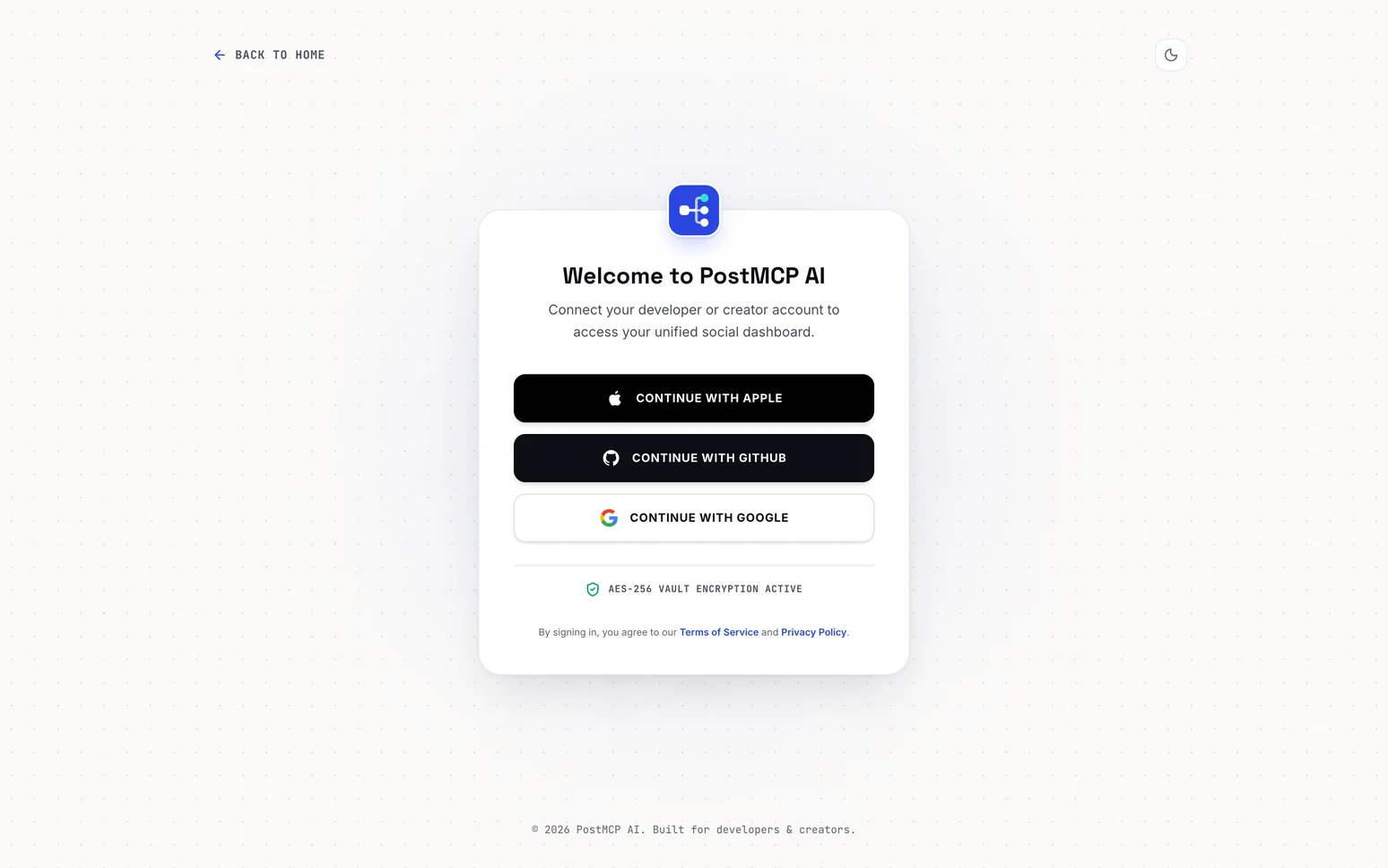
Once signed in, PostMCP provisions a dedicated workspace for you, protected by AES-256 vault encryption for your credentials.
Step 2 — Connect your social accounts
From the dashboard sidebar, navigate to Accounts and click Connect New Account (or click the plus icon). A modal titled Integrate Social Channel appears with all supported platforms.
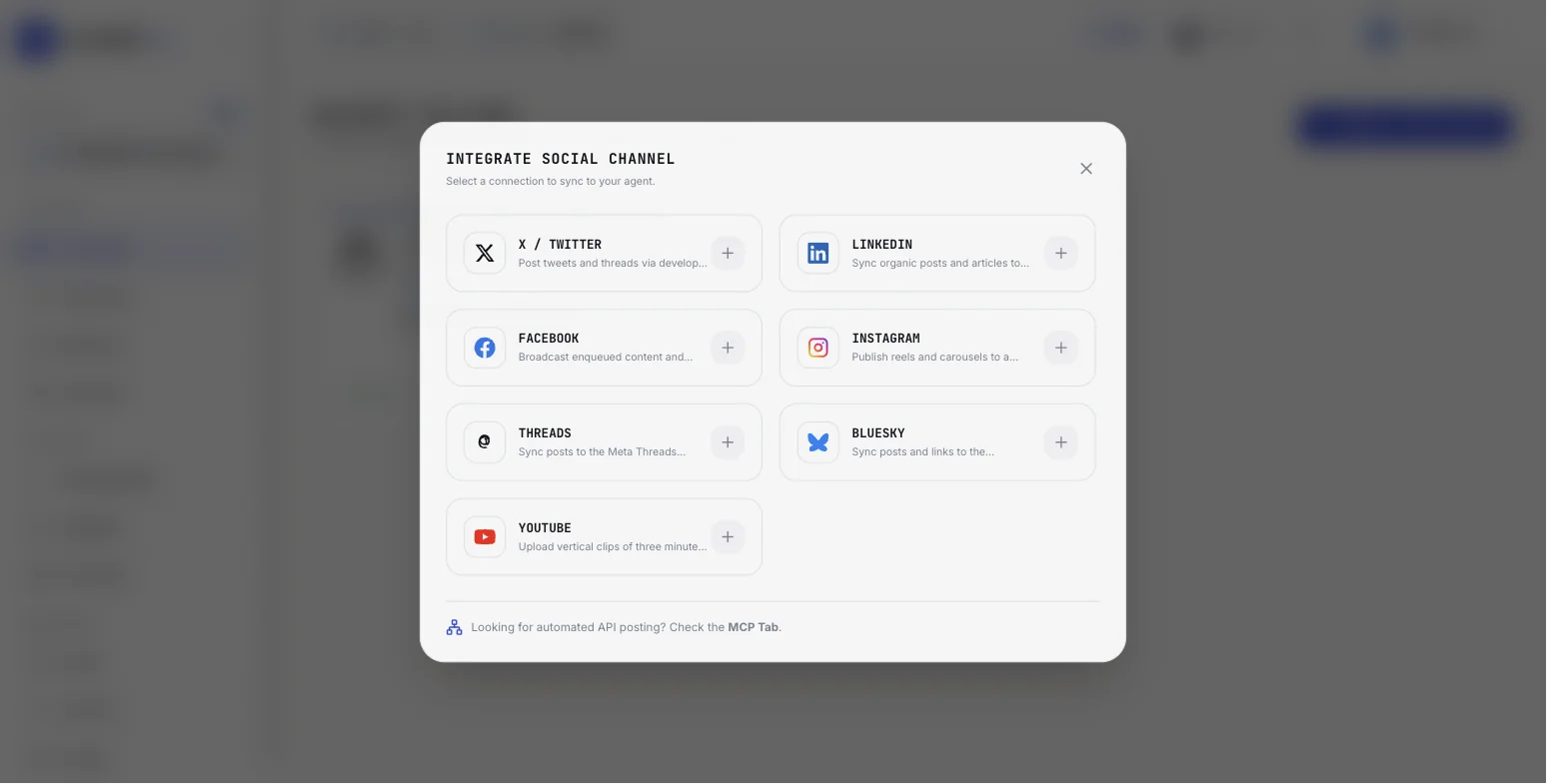
Click the + button next to your desired platform — for example, Bluesky, LinkedIn, or X / Twitter:
- 1Bluesky
Provide your Bluesky handle and an App Password generated in your Bluesky account settings. Your profile is linked in seconds.
- 2LinkedIn
Authorize via official LinkedIn OAuth. Connect either personal profiles or company pages that you manage.
- 3X / Twitter
Sign in through Twitter OAuth 2.0 to grant post and thread publishing permissions.
- 4Meta (Instagram & Facebook)
Authorize through Facebook Business Login to enable automated publishing to Instagram Business profiles and Facebook Pages.
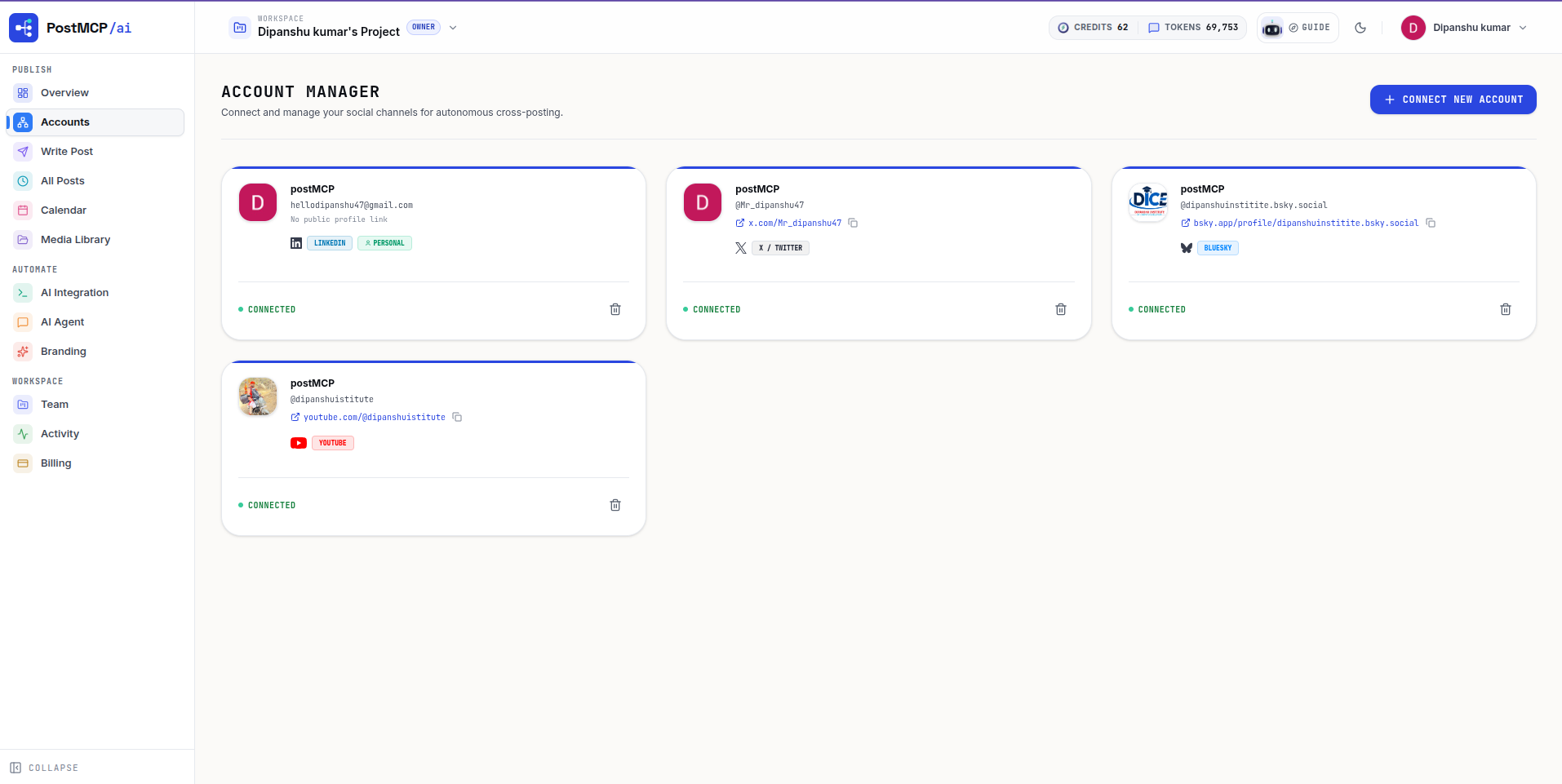
Step 3 — Copy your unique MCP Server URL
In the PostMCP dashboard left navigation bar, click on AI Integration (under the AUTOMATE section). This tab generates ready-to-use configurations for AI assistants including Claude, ChatGPT, Cursor, Antigravity, and Claude Code.
Click on the Claude AI card. The complete 3-step setup walkthrough appears with your unique connection parameters:
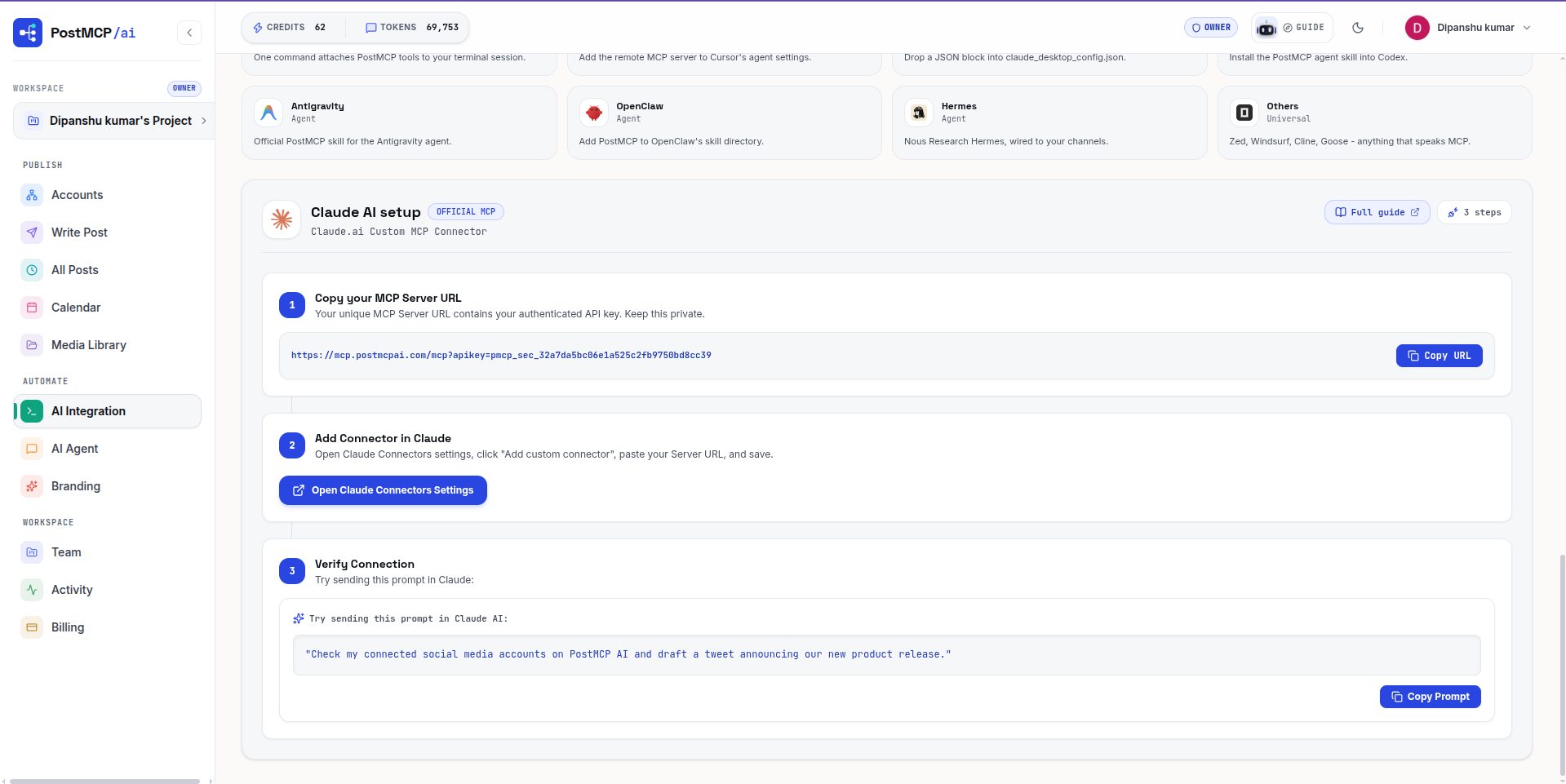
Click the blue Copy URL button in Step 1. Your clipboard will hold a URL formatted like: https://mcp.postmcpai.com/mcp?apikey=pmcp_sec_••••.
Step 4 — Add the PostMCP connector in Claude.ai (Web)
If you use Claude in your web browser (claude.ai) on a Pro, Team, or Enterprise plan, you can connect PostMCP directly via custom connectors.
- 1Open Settings in Claude
In Claude.ai, click on your profile avatar in the bottom-left corner of the sidebar and select Settings.
- 2Navigate to Connectors
In the Settings modal, select the Connectors tab from the left navigation menu.
- 3Add custom connector
Click the Add dropdown in the top-right corner and choose Add custom connector (or navigate directly to
claude.ai/settings/connectors?modal=add-custom-connector).
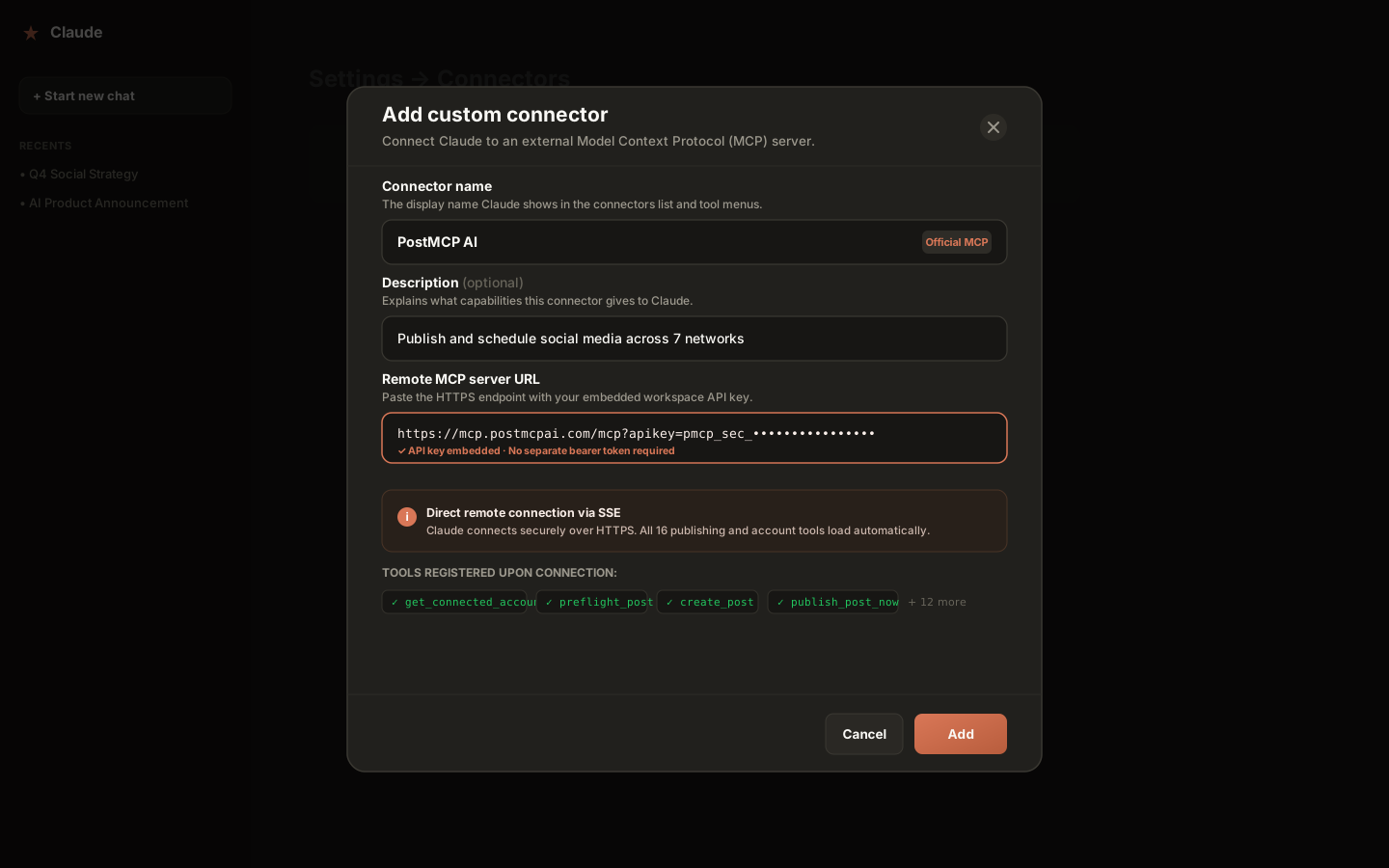
Configure each field in the Add custom connector modal as follows:
| Field | What to enter / select | Details |
|---|---|---|
| Connector name | PostMCP AI (or Post mcp) | The identifier Claude displays in tool menus and chat indicators. |
| Description (optional) | Publish and schedule social media across 7 networks | Helps Claude know when to leverage this connector. |
| Remote MCP server URL | https://mcp.postmcpai.com/mcp?apikey=pmcp_sec_••• | Paste the exact URL copied from the PostMCP AI Integration tab. |
Click Add. Claude establishes a secure Server-Sent Events (SSE) connection to PostMCP’s HTTPS endpoint, negotiates schemas, and registers all 16 publishing and account tools.
Step 5 — Alternative: Configure Claude Desktop (Free on macOS & Windows)
If you are on Claude’s free plan, or prefer working in a native desktop application, you can connect PostMCP to Claude Desktop at zero cost using its built-in configuration file.
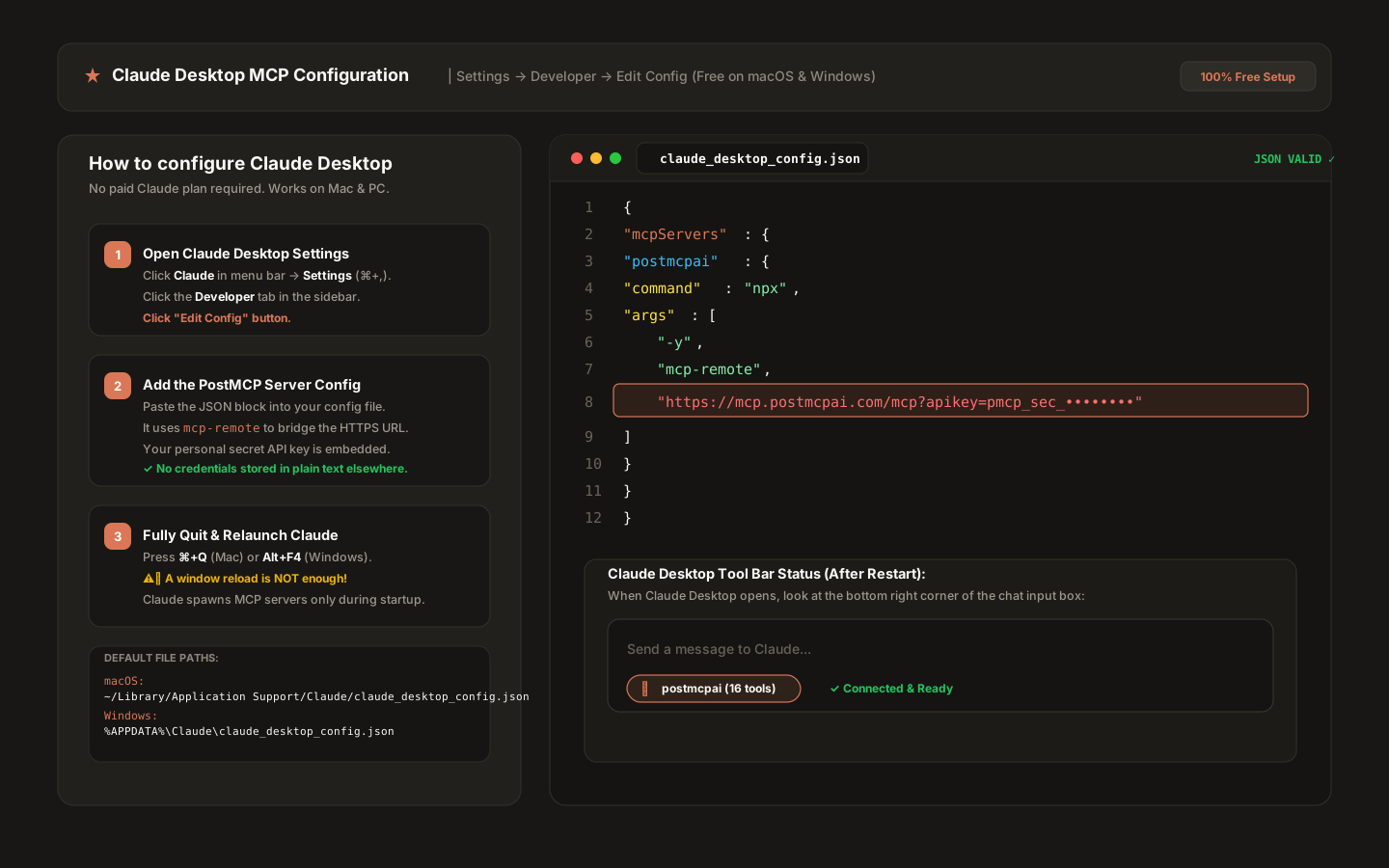
- 1Open Claude Desktop Developer Settings
In Claude Desktop, click Claude in the top menu bar (or press ⌘+, / Ctrl+,), select Settings, then click the Developer tab and choose Edit Config.
- 2Paste the JSON Configuration
Your default text editor will open
claude_desktop_config.json. Paste the snippet below into the file, replacing the URL with your copied PostMCP endpoint:
{
  "mcpServers": {
    "postmcpai": {
      "command": "npx",
      "args": [
        "-y",
        "mcp-remote",
        "https://mcp.postmcpai.com/mcp?apikey=pmcp_sec_••••••••••••"
      ]
    }
  }
}Step 6 — Test and verify PostMCP tools in Claude
Start a new chat in Claude (either on Claude.ai or Claude Desktop). You will see the active connector badge confirming that PostMCP tools are loaded.
Before publishing live content, run a safe, zero-risk verification query that inspects your workspace without modifying any feeds:
“What social accounts do I have connected on PostMCP? List their profileIds and status.”
Claude calls get_connected_accounts and reads back your connected profiles (such as Bluesky handle or LinkedIn company page) along with their active statuses and profile IDs. This single prompt proves the entire pipeline is working end-to-end.
Step 7 — Prompt Claude to draft, preview, and publish live
Now you can instruct Claude in plain English to craft and publish posts to your social channels. Here is an example prompt requesting a high-impact LinkedIn post published via PostMCP:
“AI content for Linkedin with postmcp”
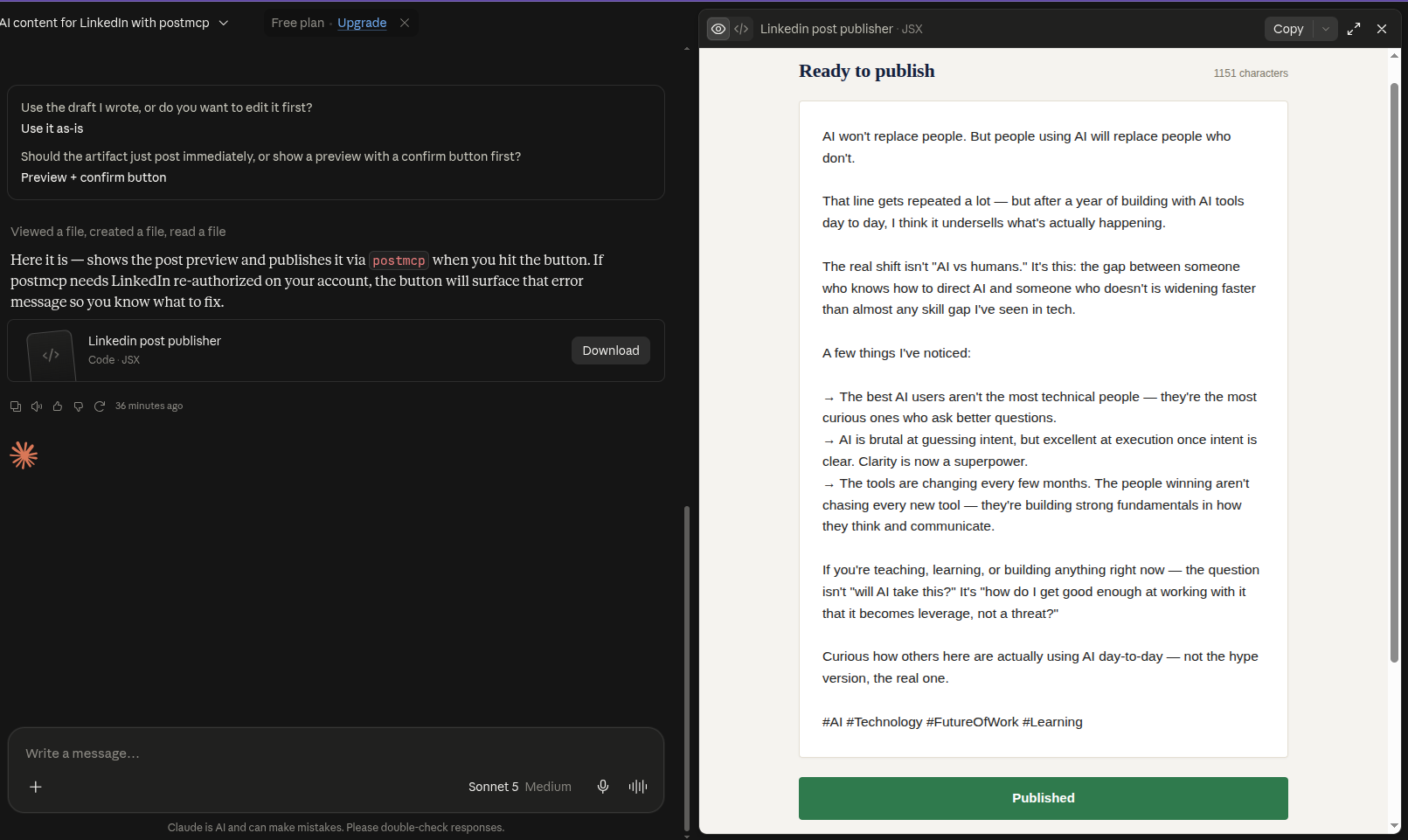
Notice the intelligent safeguards and execution steps Claude performs during this exchange:
- 1Platform Preflight & Character Validation
Claude detects that the destination is LinkedIn, composing thoughtful copy tailored to LinkedIn’s professional audience at 1,151 characters (well within LinkedIn’s 3,000-character limit).
- 2Interactive Confirmation & Safety Controls
Claude asks whether you want to edit the draft or use it as-is, and gives you the choice to show a preview with a confirmation button before anything touches your live feed.
- 3Direct MCP Tool Execution & Verification
Upon clicking the confirm button, Claude calls PostMCP’s publishing tool behind the scenes, checks authorization health, and updates the status badge to a green "Published" state.
Step 8 — Verify the live published post
Your post is published live to your social feed! Here is the exact post generated and published by Claude in this live run:
“AI won't replace people. But people using AI will replace people who don't. That line gets repeated a lot — but after a year of building with AI tools day to day, I think it undersells what's actually happening. The real shift isn't "AI vs humans." It's this: the gap between someone who knows how to direct AI and someone who doesn't is widening faster than almost any skill gap I've seen in tech. #AI #Technology #FutureOfWork #Learning”
The copy, line breaks, bullet points, and hashtags are formatted cleanly and published in real time. Claude even surfaces account re-authorization guidance automatically if your social tokens ever require a refresh.
Managing and reviewing posts in PostMCP
Every post created or scheduled by Claude appears immediately in your PostMCP dashboard. The Content Calendar gives you a complete visual overview across all connected networks.
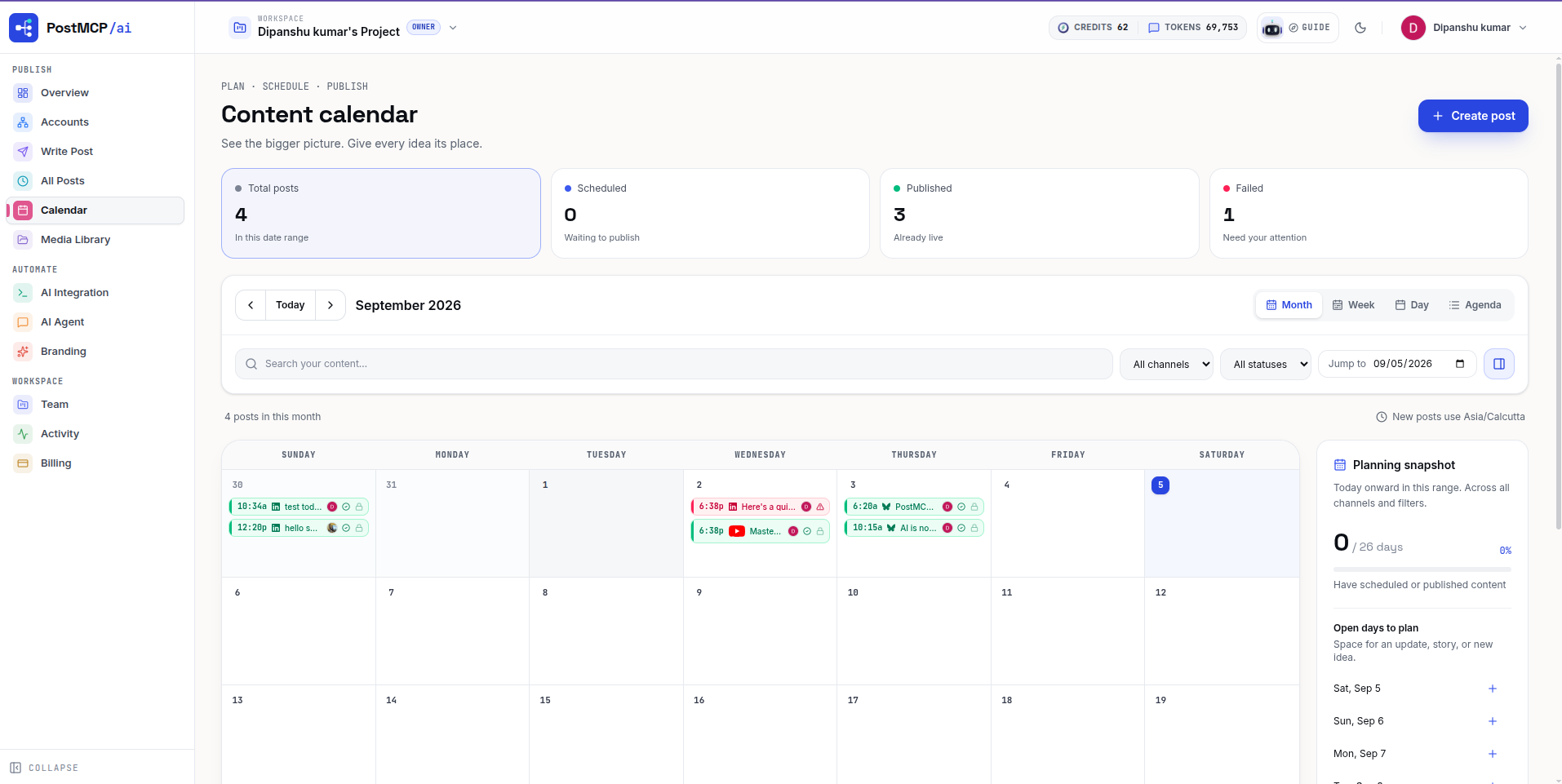
You can also inspect the exact MCP tool call payloads in the PostMCP Composer, giving you complete visibility into parameters, token usage, and target profiles:
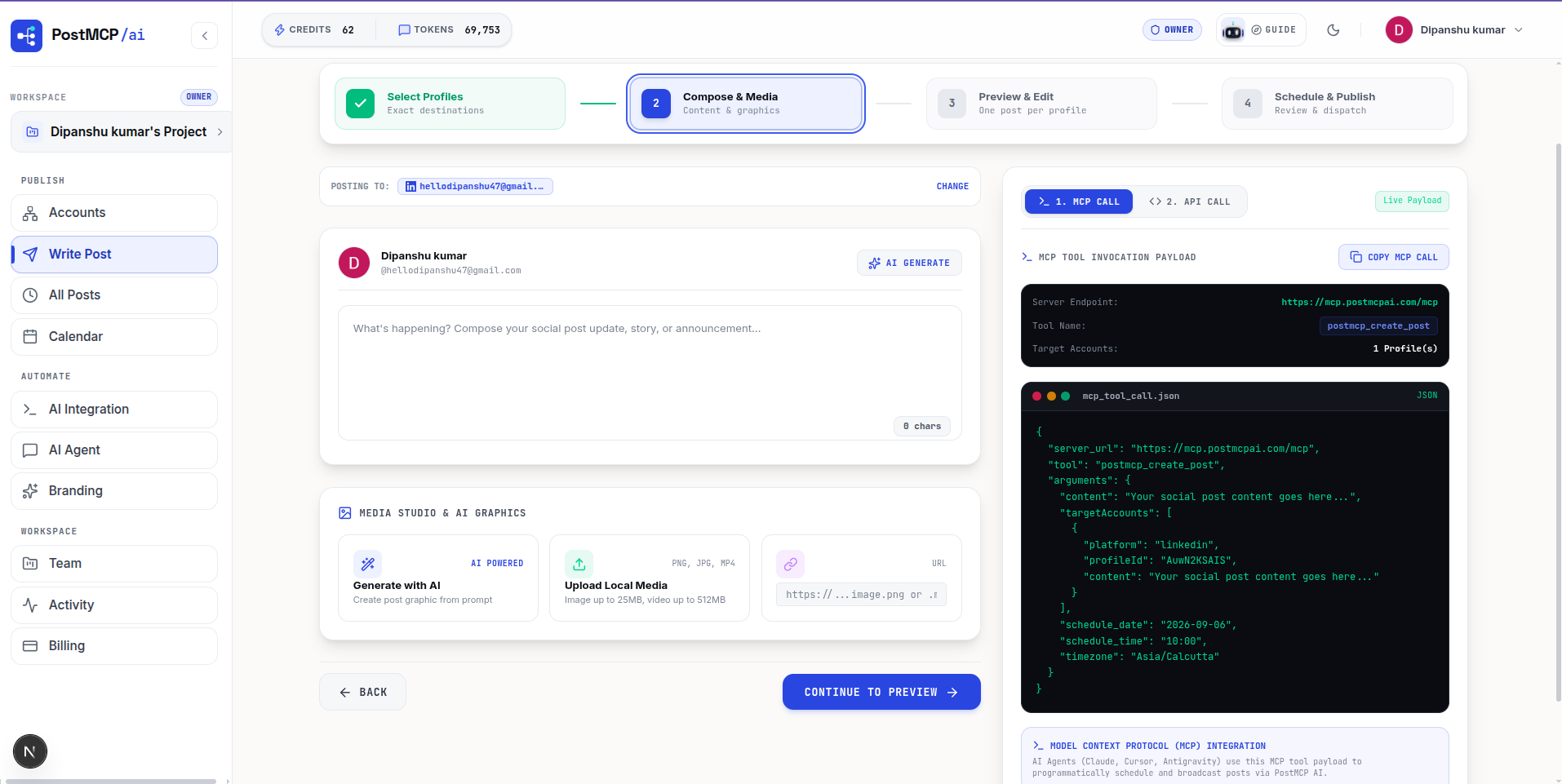
Want to try a tool call by hand before you trust Claude with it? The dashboard’s API Console runs any of the same tools with your key and shows the exact request and response — the fastest way to learn what a call returns.
More powerful prompts to try with Claude
With Claude connected to PostMCP, you can automate sophisticated cross-network publishing routines:
- 1Multi-platform campaign fan-out
“Draft a product launch post for LinkedIn and X. Make LinkedIn formal with 3 bullet points, and keep X punchy under 280 characters with hashtags. Confirm copy before publishing.”
- 2Timezone-aware scheduling
“Schedule a developer tip about TypeScript for next Tuesday at 9:00 AM EST on Bluesky and Threads.”
- 3Health diagnostics check
“Run get_account_health on PostMCP and report if any social tokens are close to expiration or need re-authorization.”
- 4Repurpose content from notes
“Here are our weekly release notes. Turn them into 3 distinct social posts and schedule them across Monday, Wednesday, and Friday.”
Troubleshooting common setup hurdles
- 1Connectors tab is missing in Claude.ai
Custom connectors on claude.ai require a Claude Pro, Team, or Enterprise subscription. If you are on the free tier, download Claude Desktop for macOS or Windows — it supports MCP connectors at zero cost via claude_desktop_config.json.
- 2Claude Desktop does not detect PostMCP tools
Ensure you completely quit Claude Desktop (⌘+Q on Mac or exit from system tray on Windows) and reopened it. A window close or reload does not restart the MCP process.
- 3JSON syntax error in claude_desktop_config.json
Verify that all brackets, quotes, and commas are valid. Make sure there is no trailing comma after the args array.
- 4Scheduled post appears at the wrong time
PostMCP schedules default to UTC if no timezone is provided. Always specify the timezone in your prompt, e.g., "Tuesday at 10:00 AM EST" or "15:00 UTC".
- 5Token expired error during publishing
Social networks periodically refresh OAuth tokens. If an error occurs, visit the PostMCP Accounts tab, click Reconnect next to the affected platform, and re-run your prompt.
Summary & Next Steps
Connecting Claude to PostMCP AI gives you an autonomous social media copilot directly inside your daily AI workflow. You can draft, preflight, schedule, and publish content across seven networks without ever leaving chat.
To connect other AI assistants, read our guide on how to connect ChatGPT to PostMCP AI, check out what a social media MCP server is, or explore our AI Agents hub.
Frequently asked questions
- Can Claude post to social media directly?
- Not natively, because Claude does not store your social credentials or OAuth tokens. Through Anthropic’s native Model Context Protocol (MCP) integration, you give Claude access to PostMCP’s publishing tools. Once added as a custom connector in Claude.ai or configured in Claude Desktop, Claude can list your connected accounts, compose tailored copy for each channel, run preflight validation, and publish or schedule posts.
- What Claude subscription is required for MCP connectors?
- On Claude.ai (web), custom connectors are available on Claude Pro, Team, and Enterprise accounts under Settings → Connectors. If you are on the free tier, you can use the free Claude Desktop application on macOS or Windows, which connects to PostMCP using a simple local configuration file with zero subscription cost.
- Can I use Claude Desktop for free without a Pro plan?
- Yes! Claude Desktop supports Model Context Protocol servers for free. By adding PostMCP’s remote URL to your claude_desktop_config.json via the npx mcp-remote bridge, you unlock all 16 publishing and account management tools without paying for a subscription.
- Do I need to host an MCP server or write custom code?
- No hosting is required. PostMCP AI provides a ready-to-use, secure remote MCP endpoint over HTTPS (https://mcp.postmcpai.com/mcp?apikey=...). Your secret workspace API key is embedded directly in the query parameter.
- Does Claude publish posts automatically without asking?
- No. Claude asks for your explicit confirmation before calling any mutating tool like create_post or publish_post_now. Read-only actions like get_connected_accounts execute seamlessly to fetch profile statuses without modifying your live feeds.
- What social networks can I post to from Claude?
- Bluesky, LinkedIn (personal profiles and company pages), X (Twitter), Facebook Pages, Instagram Business, Threads, and YouTube Shorts. You can publish to a single platform or instruct Claude to fan out across multiple channels simultaneously with platform-specific character formatting.
- Where do I review and manage posts created by Claude?
- All actions taken by Claude are synchronized in real time with your PostMCP Content Calendar. You can view, reschedule, edit, or delete drafted and scheduled posts, as well as inspect the raw MCP tool call payloads in the Composer.