How to automate social media posts with Claude
Every screen you will actually see, in order: the sign-in page, the channel connection, the MCP server URL, Claude’s custom connector dialog, and the first post going out. Roughly five minutes end to end, most of it waiting on OAuth.
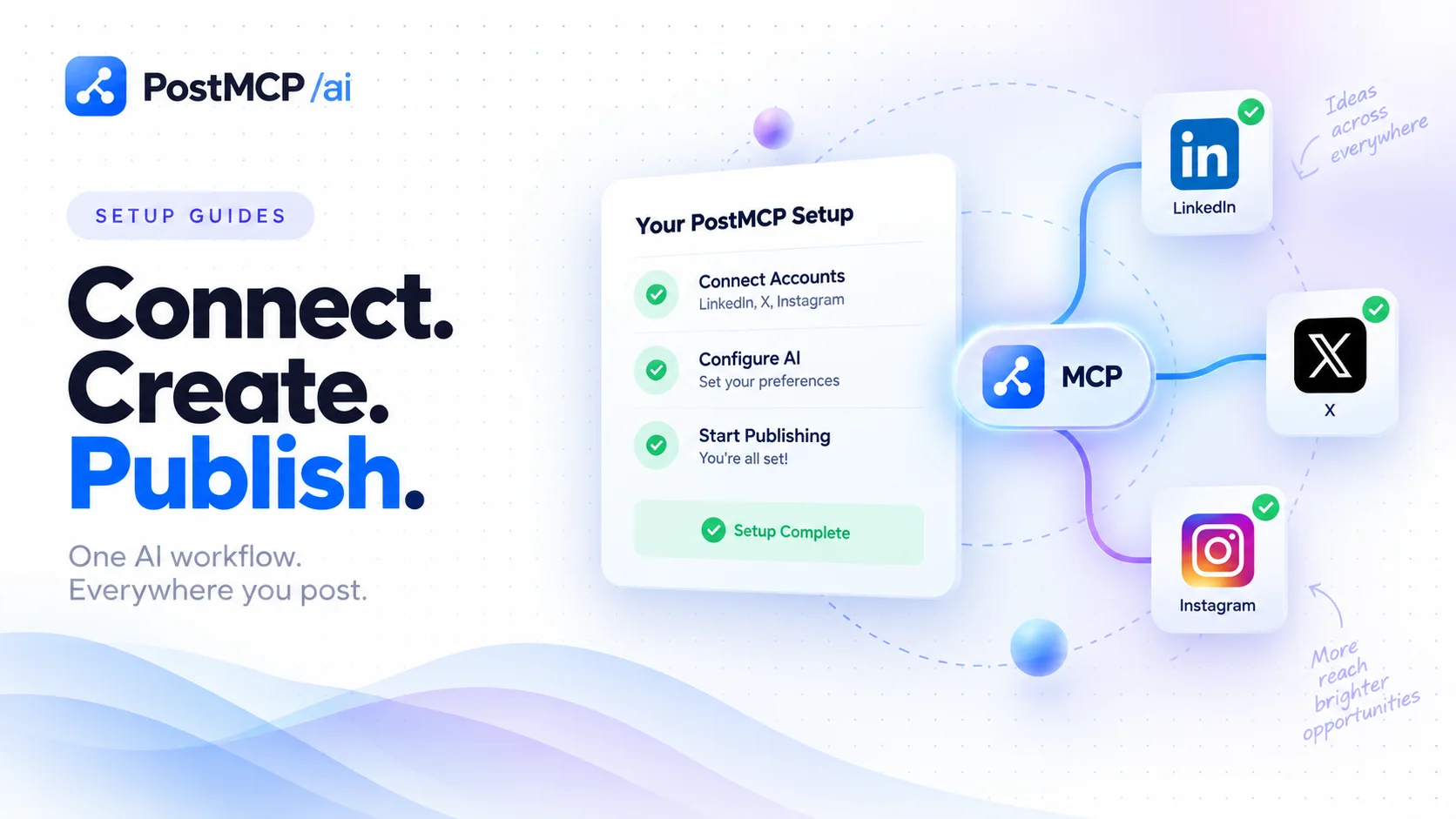
This is the whole setup, screen by screen, with nothing skipped: a brand-new PostMCP account, one social channel connected, the MCP server URL copied, and Claude wired up so that “post this to LinkedIn on Tuesday morning” is a sentence rather than a chore.
Budget five minutes. Most of that is waiting on OAuth screens you have clicked through a hundred times before.
Before you start
- A Google, GitHub or Apple account to sign in with. No card, no password to invent.
- One social account you are allowed to post from. LinkedIn is the easiest first one.
- Claude — either claude.ai on a paid plan (custom connectors are a paid feature) or Claude Desktop, which is free and reads a local config file instead.
Step 1 — Create the account
Open the sign-in page. There is no sign-up form to fill in and no email confirmation loop — the three buttons are the whole thing, and the same button signs you in next time.
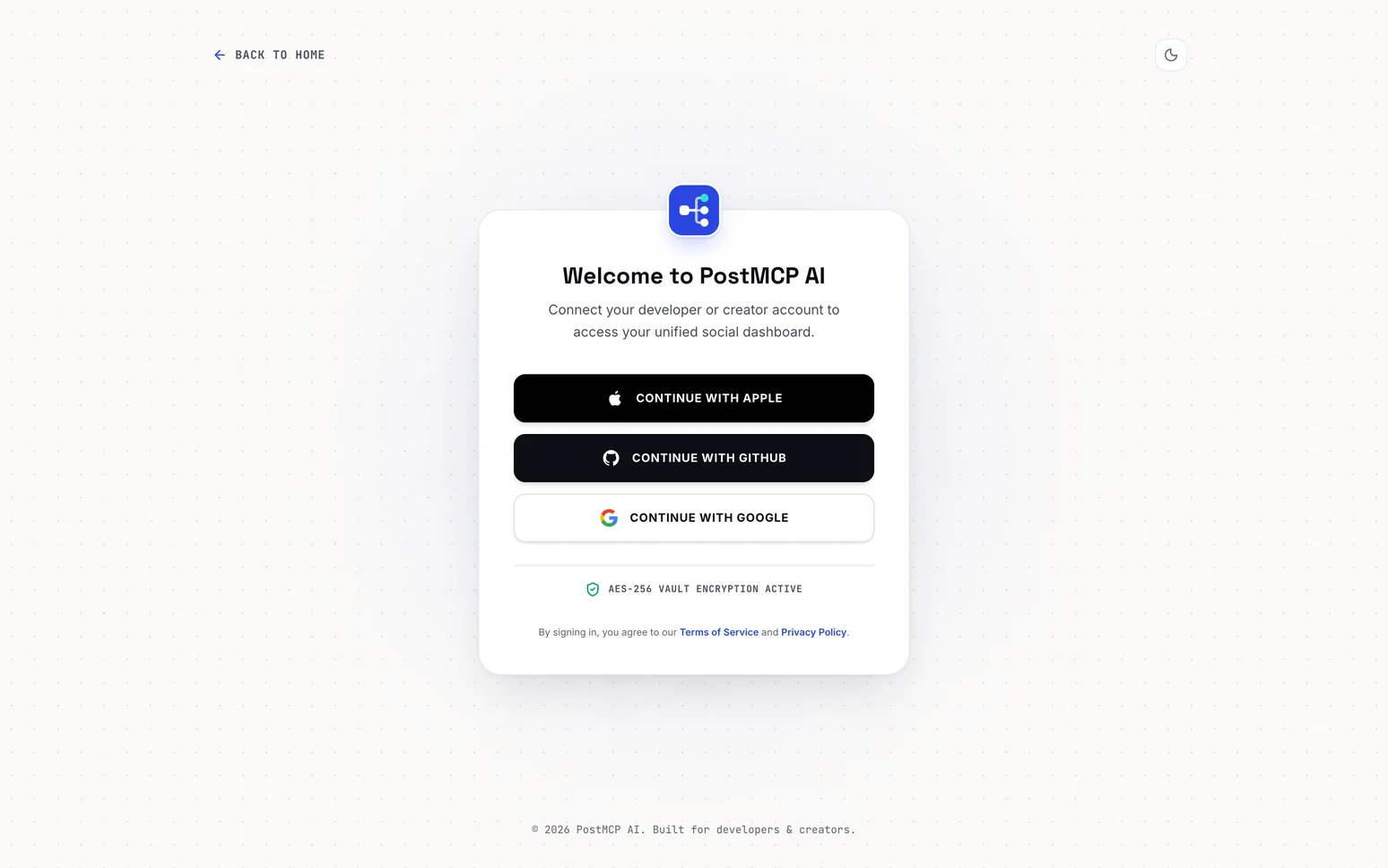
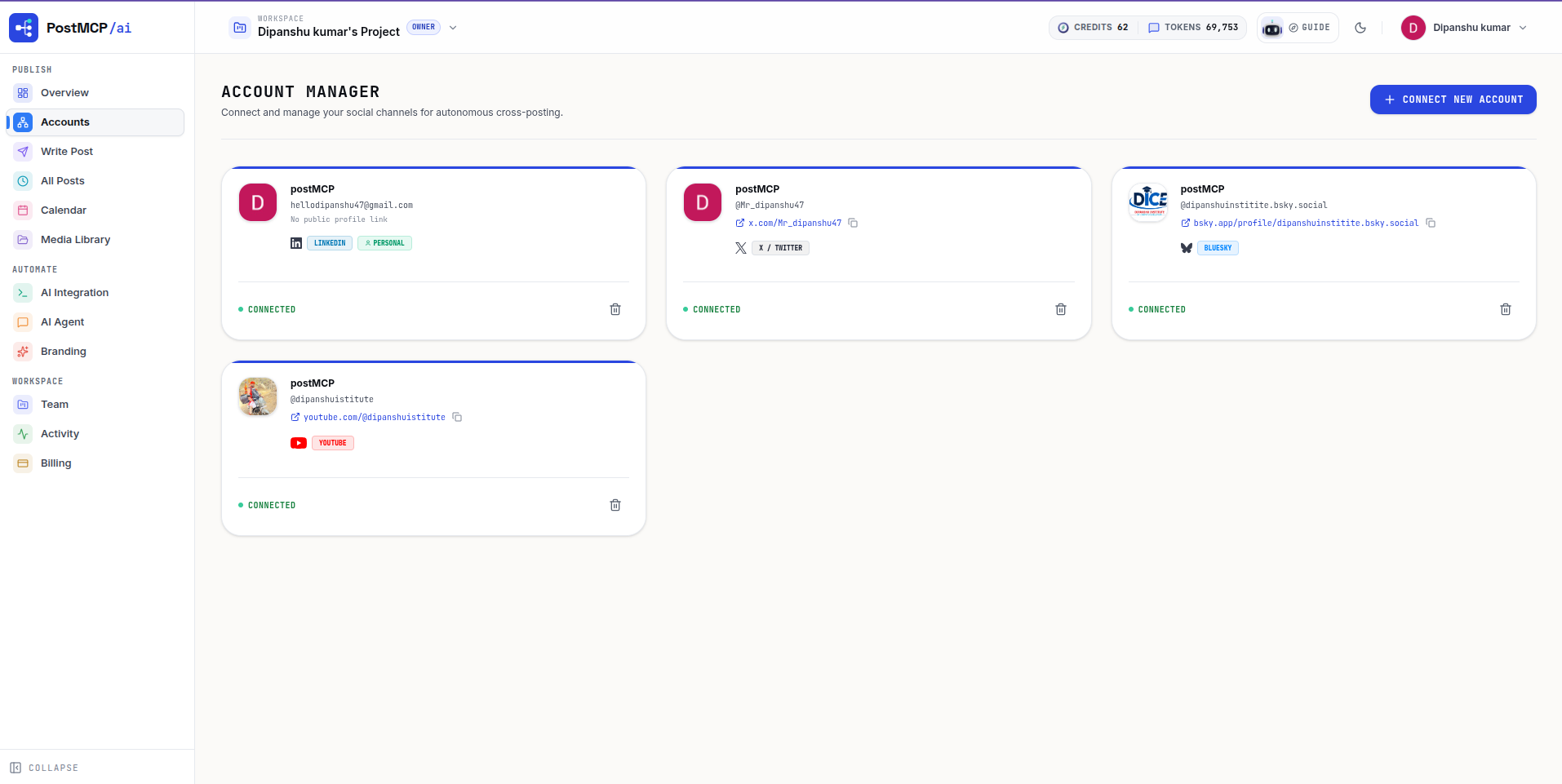
You arrive in a workspace of your own, with the Accounts tab open and nothing connected yet. That empty state is the next thing to fix, because an assistant with no channels can draft but cannot ship.
Step 2 — Connect a social channel
Press Connect New Account at the top right. Seven networks are offered; each one hands off to that network’s own OAuth screen.
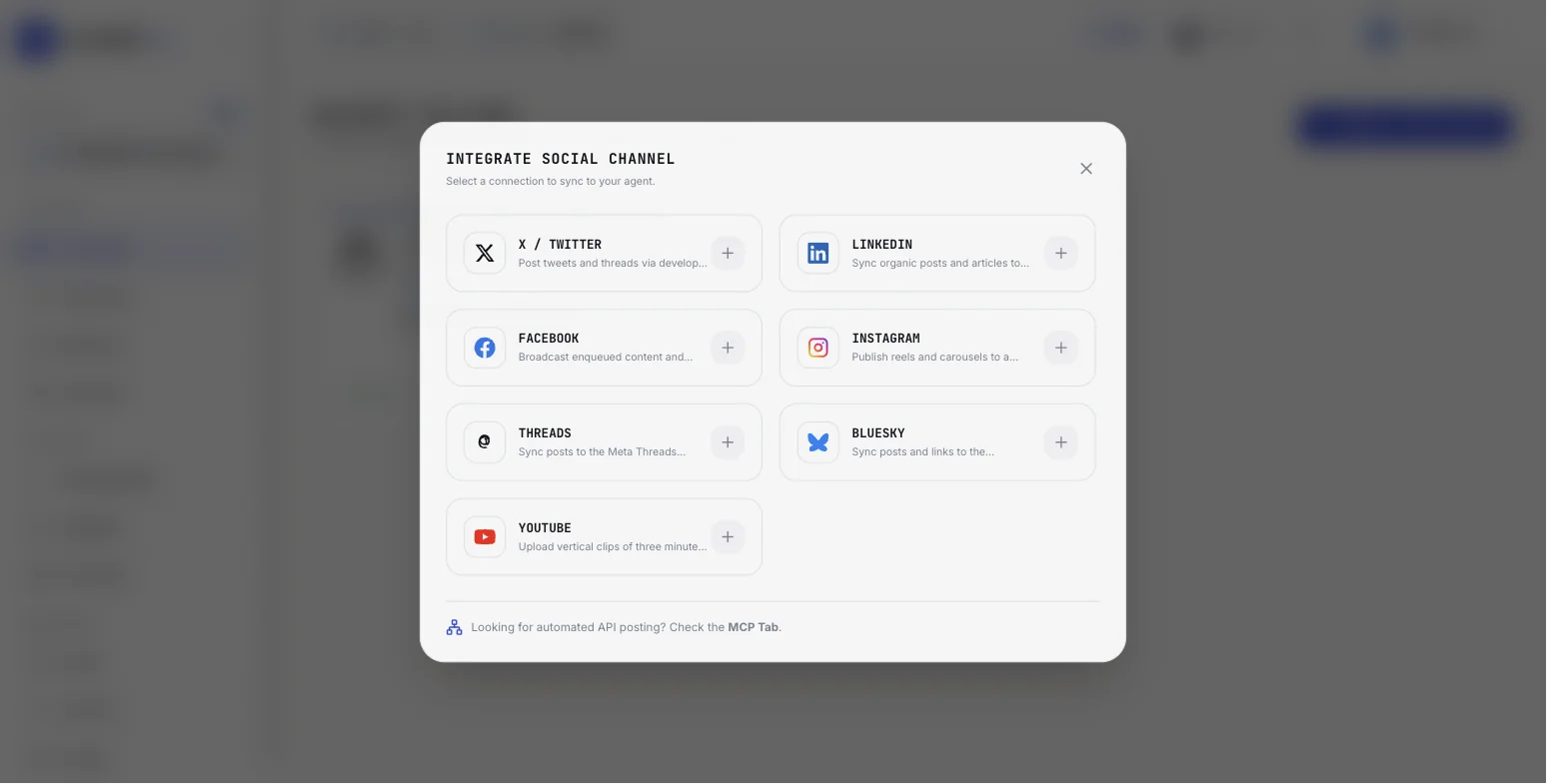
Choosing LinkedIn sends you to linkedin.com to approve the permissions. Come back and, if your credential covers several profiles or company pages, you pick which ones to sync — a personal profile and a company page are separate destinations, and only the ones you tick are ever posted to.
Step 3 — Copy your MCP server URL
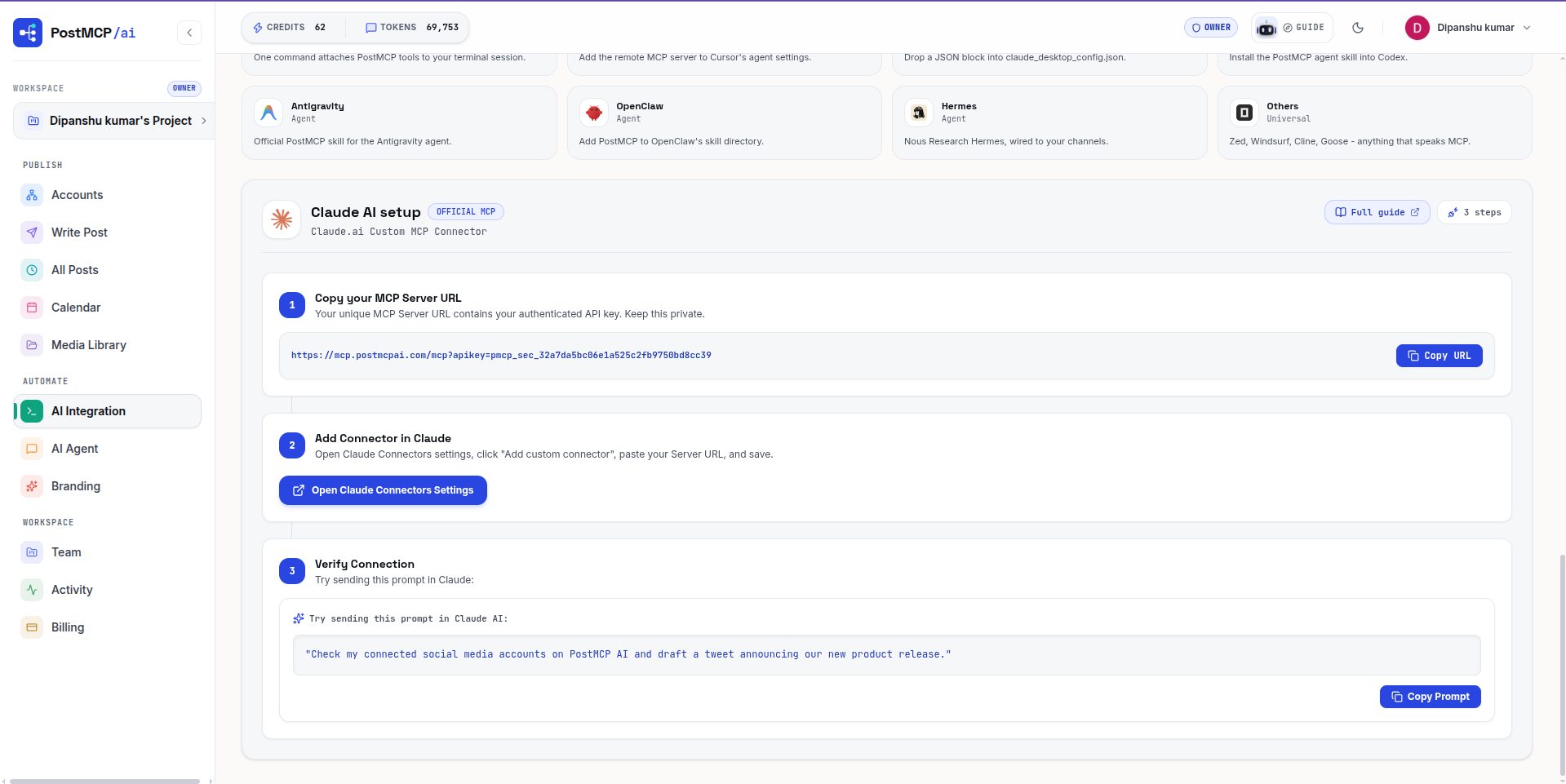
Open AI Integration in the sidebar. This tab exists to hand your workspace to an AI client, and it knows about a dozen of them — Claude, ChatGPT, Claude Code, Cursor, Codex and the rest. Claude is the first card.
Step 4 — Add the connector in Claude
The Open Claude Connectors Settings button in step 2 above takes you straight there. Otherwise, in Claude open Settings → Connectors — the list shows what is already wired in, and the Add button sits in the top right.
- 1Add → Add custom connector
The Add menu offers two things. Browse connectors is Anthropic’s directory; Add custom connector is the one you want.
- 2Name it
Whatever you type here is what you will see in Claude’s tool list. “PostMCP AI” does the job.
- 3Paste the server URL
Into the Remote MCP server URL field, exactly as copied. There is no separate API key box — the key travels inside the URL — so there is nothing else to fill in. Press Continue.
Claude connects, reads the server’s tool list, and the publishing tools become available in your next conversation. On Claude Desktop the same thing happens through a config file instead:
{
  "mcpServers": {
    "postmcpai": {
      "command": "npx",
      "args": ["-y", "mcp-remote", "https://mcp.postmcpai.com/mcp?apikey=pmcp_sec_•••"]
    }
  }
}
Quit Claude Desktop completely and reopen it afterwards. A window reload is not enough, because the server is started when the app launches.
Step 5 — Prove it works before you trust it
Do not open with a publish. Start with a question that cannot touch anyone’s feed:
“What social accounts do I have connected on PostMCP?”
Claude calls get_connected_accounts and reads back your profiles along with the profileId it will use to target each one. That single answer proves the whole chain at once — key valid, server reachable, backend up, channel connected — while nothing is at stake.
Step 6 — The first real post
Now describe the outcome and the constraints, and leave the wording to Claude. A prompt that works well in practice looks like this:
“Draft a LinkedIn post about the analytics dashboard we shipped today — first person, no hashtags, under 1,200 characters. Preflight it, show me the copy, and do not publish until I say so.”
Three things happen. Claude writes the copy. It calls preflight_post, which is a dry run that catches character-limit overflows, unconnected profiles, missing media and the credit cost without publishing anything. Then it stops and waits.
You read the draft, ask for a tighter second paragraph, and then say publish. That triggers create_post, and Claude comes back with the live URL. To schedule instead, name the time and the zone — “Tuesday 9am IST”, never a bare “Tuesday 9am”, because an unqualified hour is interpreted as UTC.
The same thing without leaving PostMCP
If you would rather not set up a client at all, the dashboard covers the everyday case on its own. Write with AI in the composer drafts a native version for each profile you selected, for one credit, and API Console in the sidebar runs any of the same tools Claude would — with the exact request and response on screen — which is the quickest way to test a call before you wire anything up.
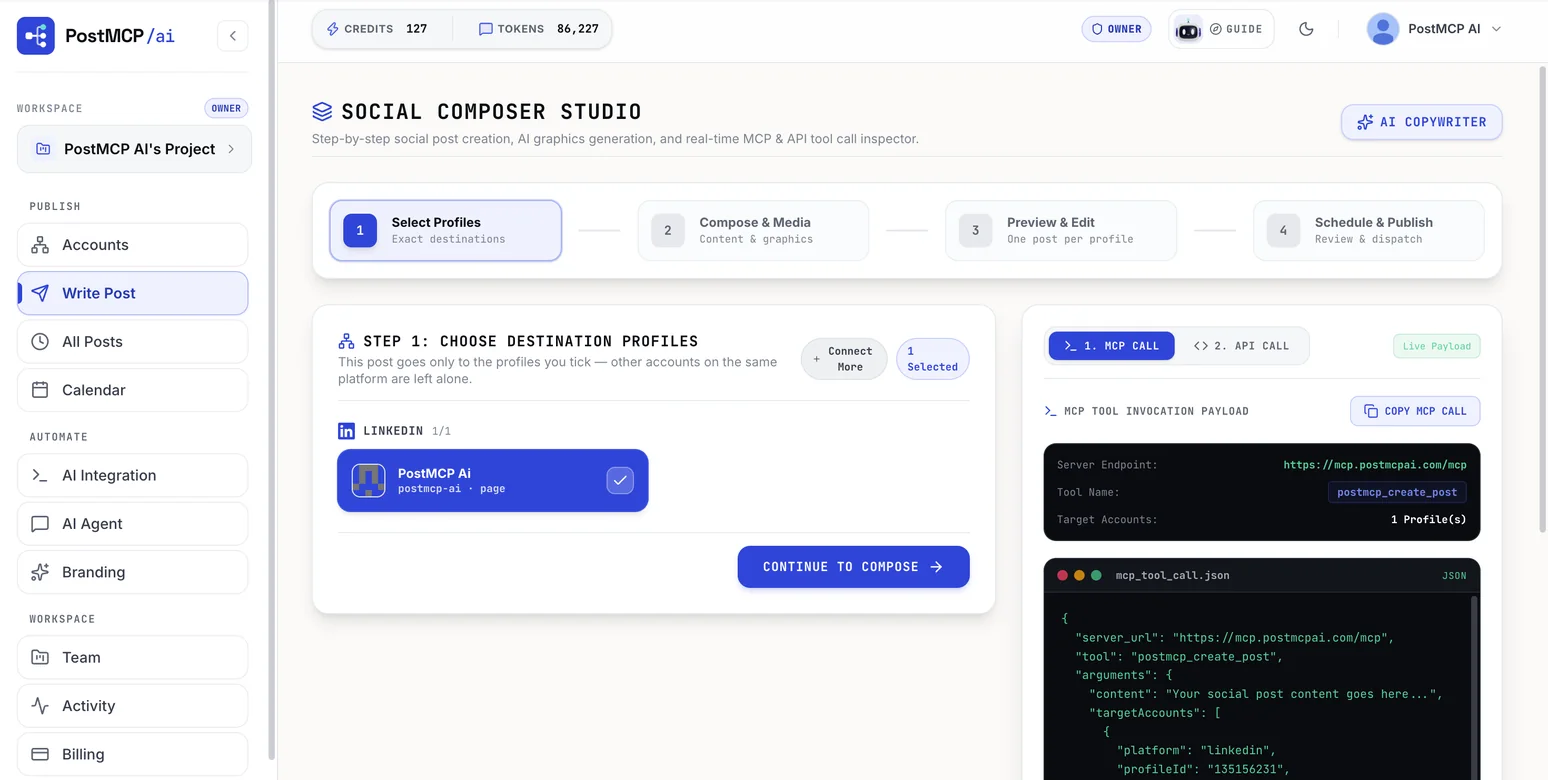
Every run shows which tools it used and lets you open the raw MCP transcript. When an automation misbehaves, that transcript is the difference between debugging and guessing.
Where the posts actually live
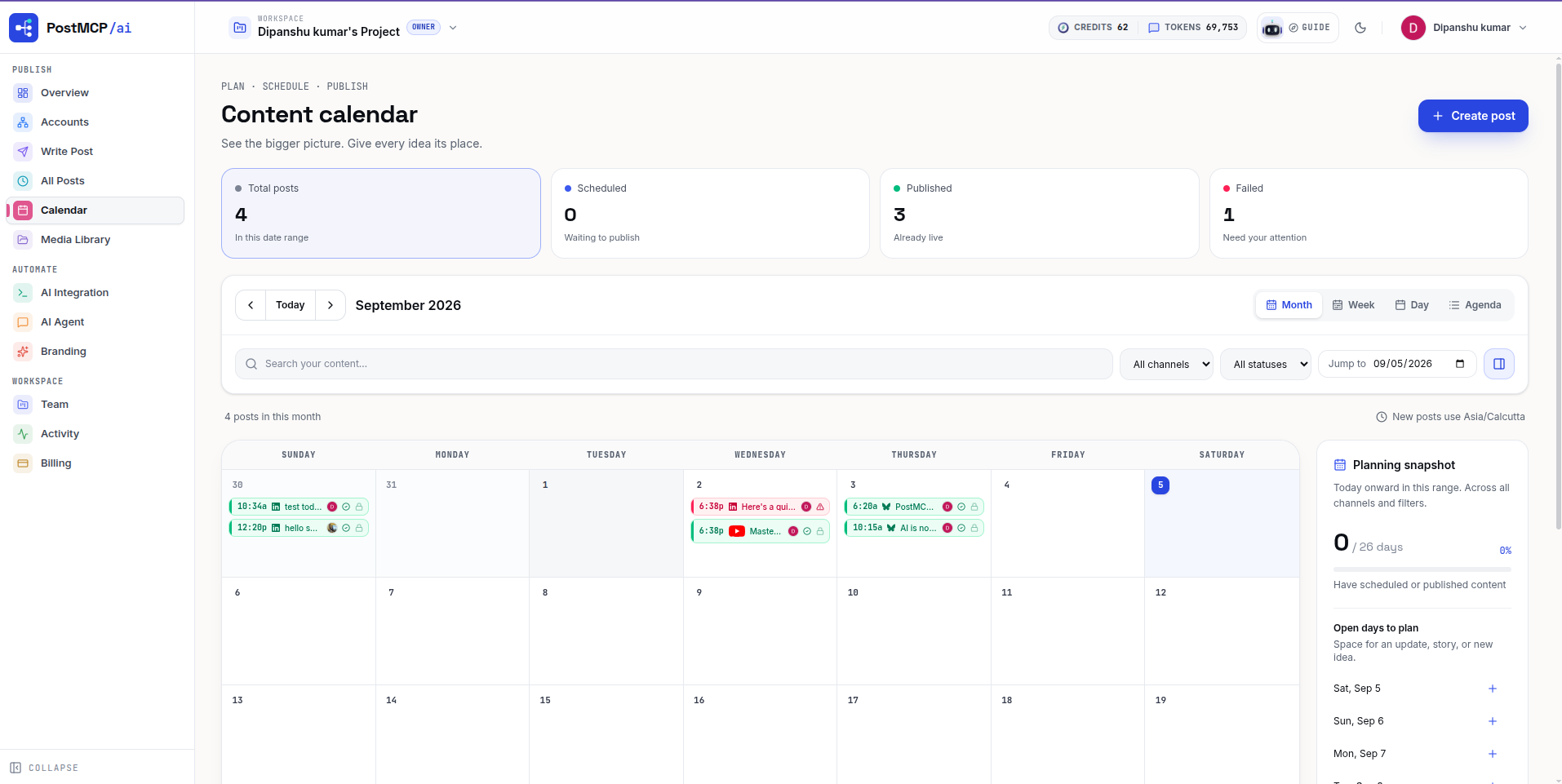
Whatever writes them — Claude, the composer’s AI draft, or you — the posts land in one queue. The content calendar is that queue with dates on it, and you can drag a scheduled post to a new slot.
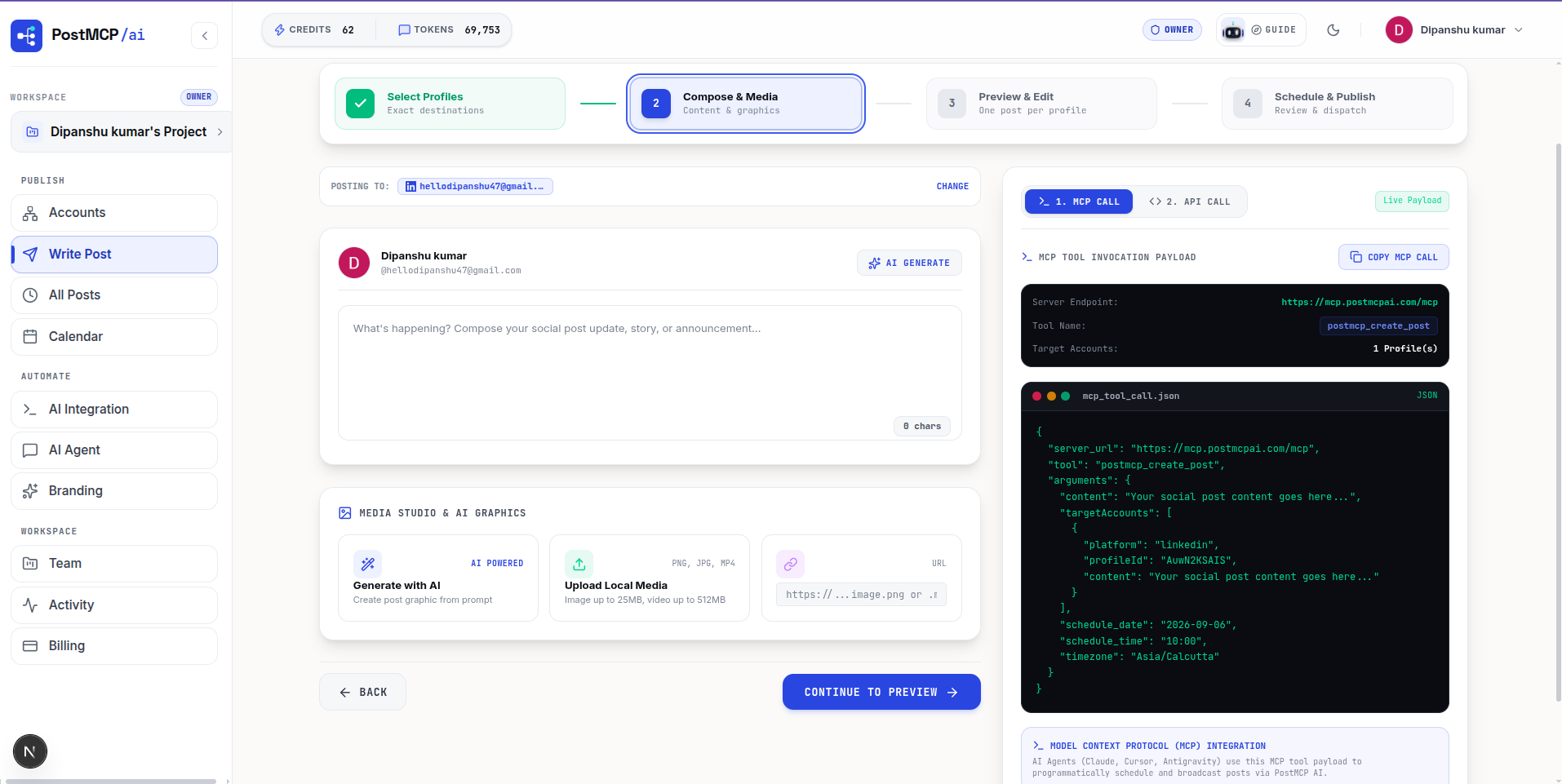
The composer is worth a look even if you never write posts by hand, because it shows the exact MCP tool call it is about to make — server endpoint, tool name, arguments, target profile ids.
The four things that go wrong
- 1The timezone was left implicit
Scheduling defaults to UTC. “9am” for an India-based account means 14:30 local. Name the zone every time a wall-clock hour matters.
- 2The client was reloaded, not restarted
Claude Desktop starts its MCP servers at launch. After editing the config, quit the app fully and reopen it — a new window is not enough.
- 3A token expired quietly
Posts stop appearing with no obvious error. Ask “does anything need reconnecting?” — that runs
get_account_healthand names the dead connections. - 4Everything was approved on autopilot
Approve reads permanently; keep the prompt on
create_postandpublish_post_now. The approval dialog is the last cheap place to catch a bad draft.
Beyond Claude
Nothing above is specific to Claude. The same URL turns ChatGPT, Cursor, Claude Code, Codex or any other MCP client into a publishing surface — the AI Integration tab has the exact steps for each. Claude Code, for instance, is a single command:
claude mcp add postmcpai -- npx -y mcp-remote https://mcp.postmcpai.com/mcp?apikey=pmcp_sec_•••
And nothing is specific to LinkedIn either. Once a second channel is connected, “post this to LinkedIn and X, but rewrite the X version to fit 280 characters” is one instruction, and the per-network variants are handled for you. If you want the full picture of what the protocol is doing underneath, start with what a social media MCP server is.
Frequently asked questions
- Can Claude post to social media by itself?
- No. Claude has no credentials for your social accounts and no way to reach them. It can call tools, so you give it a Model Context Protocol connector that holds the accounts on its behalf. Once PostMCP is added as a custom connector, publishing tools appear in Claude and it can draft, schedule and publish through them.
- How long does the setup take?
- About five minutes. Creating the account is one OAuth click, connecting a social channel is another, copying the MCP server URL is a button, and pasting it into Claude’s custom connector dialog is the last step. Most of the time goes on the social network’s own permission screens.
- Do I need a paid Claude plan?
- Custom connectors on claude.ai are a paid-plan feature. If you are on the free plan, use Claude Desktop instead — it reads a local JSON config file and costs nothing. The same PostMCP server URL works in both.
- Does Claude publish without asking me?
- It asks before running a tool that writes. The approval dialog shows the exact arguments, including the copy about to go out. Read-only tools like listing your connected accounts are safe to approve permanently; keep the prompt on anything that publishes.
- What happens to my social passwords?
- Nothing — you never type them into PostMCP or Claude. Each network is authorised through its own OAuth screen, and only an encrypted token comes back. Claude sees tool names, the arguments it chose and the results, never the token.
- Which networks can I post to this way?
- LinkedIn, X, Facebook, Instagram, Threads, Bluesky and YouTube Shorts. One instruction can fan out across several of them, with per-network copy rewritten to fit each one’s limits.